The next game that I have made in this project was a Space Invaders prototype, which I based off from the space invaders games that only involve spaceships because I didn’t feel like making something that was totally different from the other space invaders games as I wanted to stick with the space theme of this type of game.
Link to my space invaders game: Space Invaders Clone by DinoBoi111 (itch.io)
Player Sprite creation
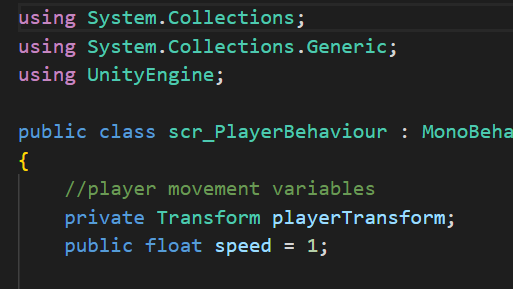
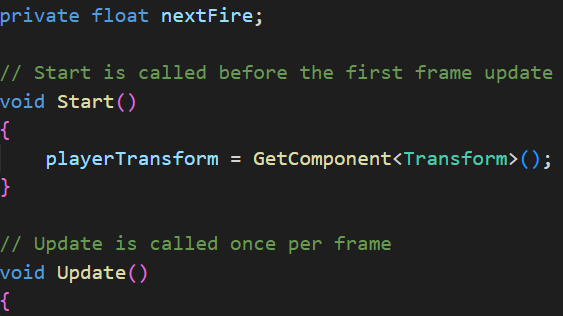
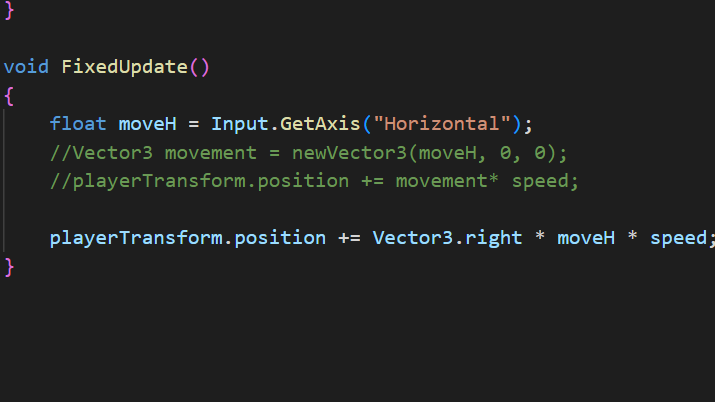
So, I started the project by creating a 2D project on Unity version 2022.7.1f like always and adjusted my aspect ratio to 16:9 ratio (since the game screen has to be horizontal not vertical) with an orthographic projection (since I’m making a 2D game). Then, I downloaded the sprites that I was going to use for this game and created a folder for them in the assets tab to put them in there so I could drag them on the scene. I started off by dragging the player sprite into the scene and adding a rigidbody 2D component to it as I would be using physics to move my player sprite around. When applying the rigidbody 2D component I made sure that I froze the y and z axis movements as I wouldn’t want the player to move up or down or for it to rotate uncontrollably while moving it. I then created a c# script for the player sprite and added 2 variables a private transform player transform and a public float speed as I would want to manipulate that to use for the player character to move and to control how fast the player character moves. As you can see below, I added a GetComponent transform function in the void start function, this is so I would not have to drag components onto a box like I did in my cookie clicker prototype and instead it would make Unity automatically find it. The reason why the transform function is private is because it doesn’t need to be accessed in the unity editor. For my void fixed update function, I used a Vector3 which basically is a number used for defining the direction and speed of an object in 3 axis (x, y and z). Vector3.right is basically just the manipulation of the x value only. (All of this can be seen in my script below)
Player Bullet creation
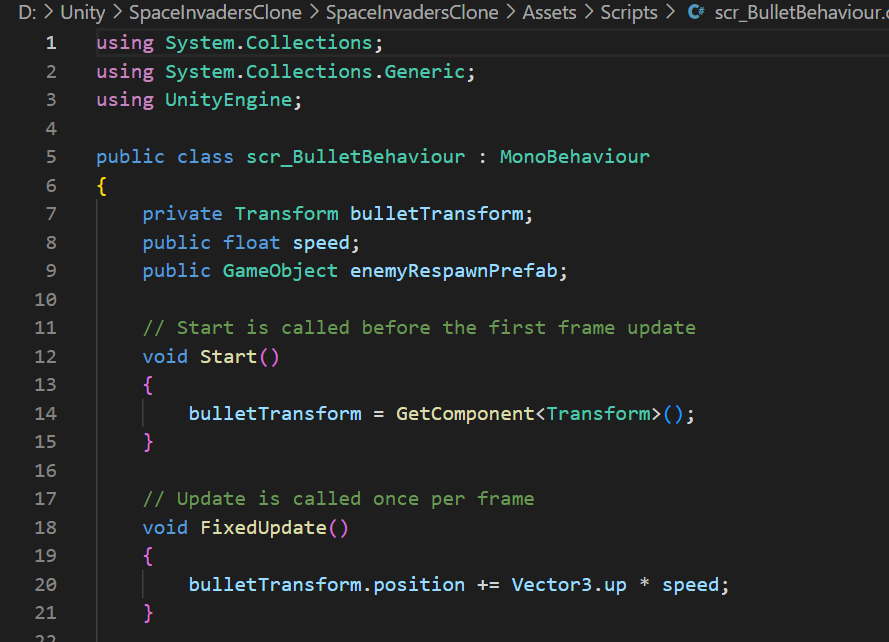
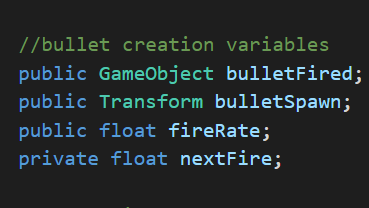
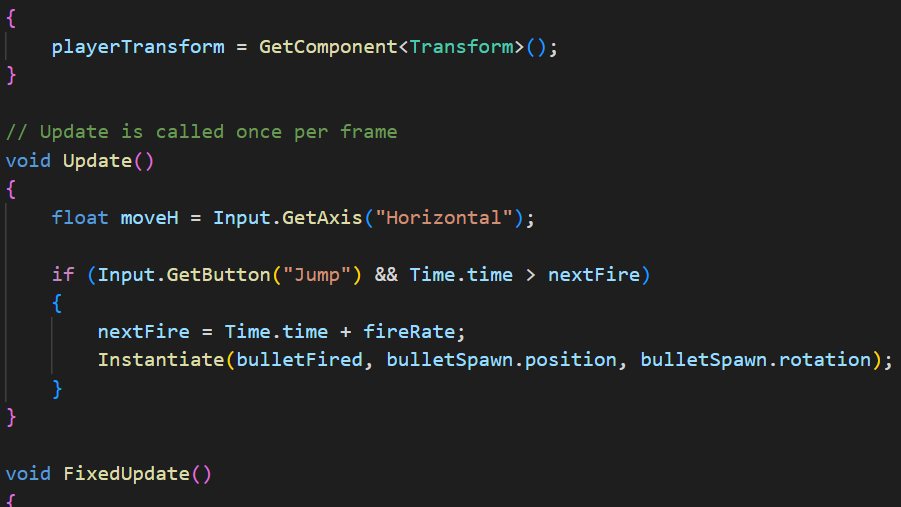
I then added the bullet sprite into the game and also gave it a rigidbody 2D component but adjusted the material type to kinematic so that forces like gravity would not be affecting it (as I would not want the bullet to go down). I then created a new folder in the assets tab again called prefabs and dragged the bullet sprite onto the prefabs folder (so that the game would be able to keep firing bullets even after the last bullet has left the game). I then created a new c# script for the bullet sprite which was similar to the player sprite script (at that moment) but instead of doing a Vector3 right I put a Vector3 up as I would want the bullets to go up rather than down. I then updated the c# script on the player sprite’s behaviour so that each time the space button would be pressed a bullet would be fired. The public GameObject variable is particularly important here as I would want to reference the bullet sprite so that unity would not get mixed up over which object should be fired. The public float fireRate and private float nextFire variables are also important as they would allow me to control at which rate my bullets would be fired at in the inspector window.
Enemy Sprite creation
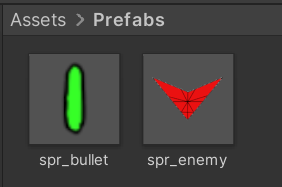
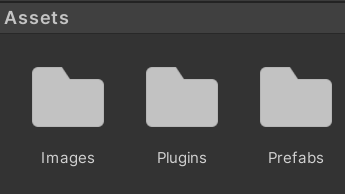
After that, I dragged the enemy sprite into the game and added a rigidbody 2D component to it and the kinematic material type (similarly to what I did to the bullet). I also dragged the enemy sprite into the prefabs folder in the same way as I did to the bullet as I wanted to make the enemies keep spawning so that the gameplay would last longer (all of that is shown in the images below). I also placed a tag on my enemy sprite in the inspector called “Enemy” and also placed a tag on my bullet sprite and called that “Bullet” as those will be important for my scripts later on.
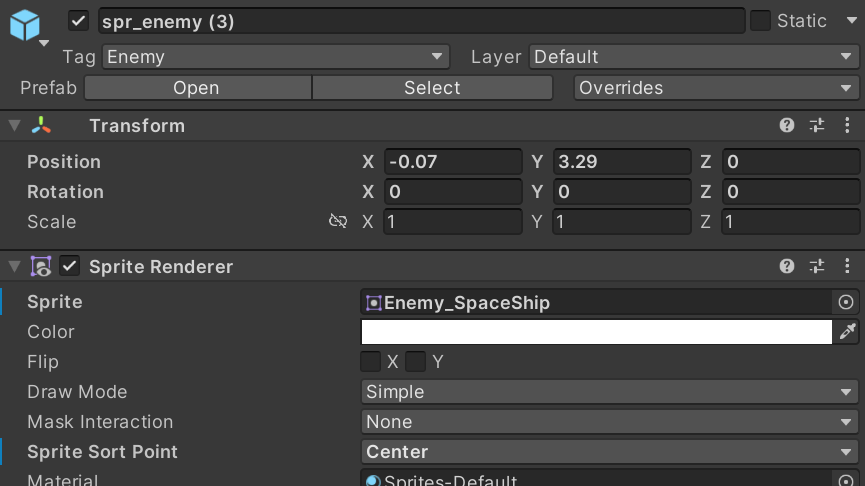
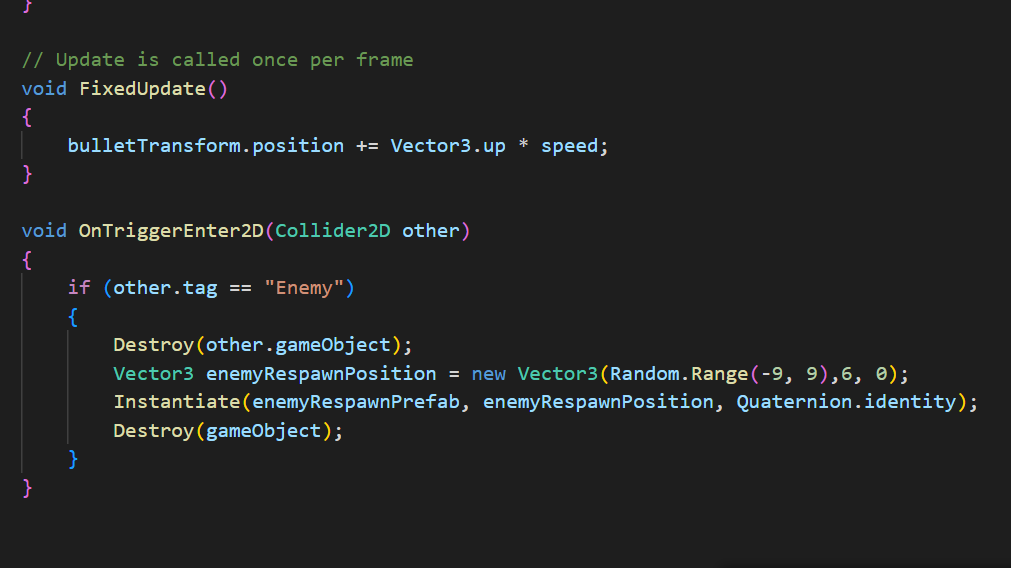
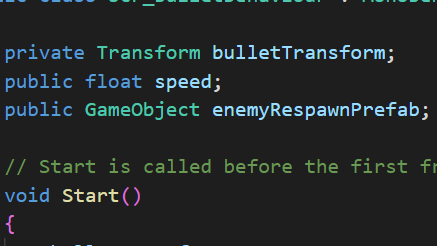
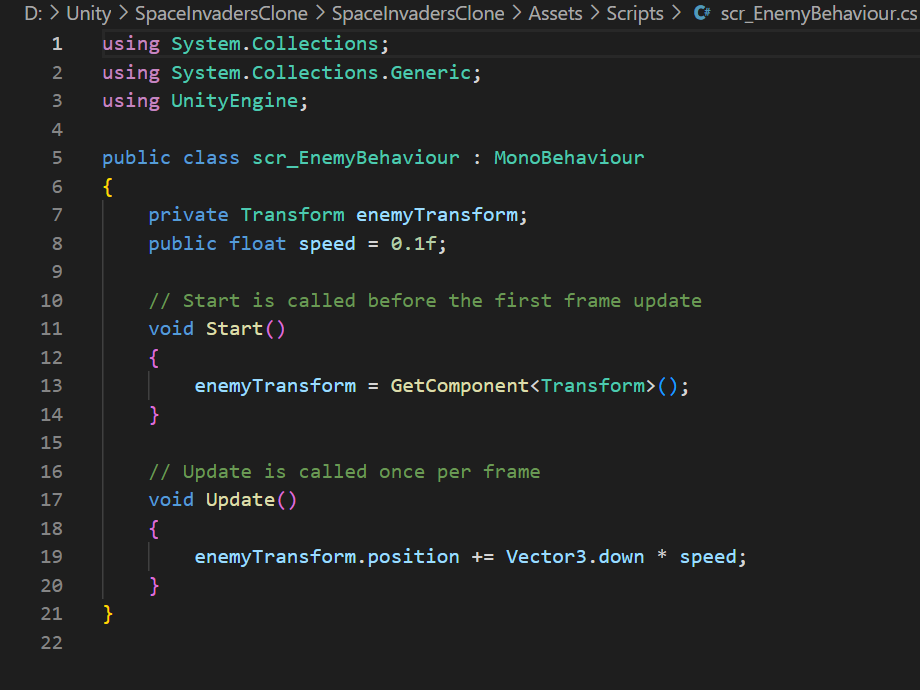
I then created a new c# script for the enemy sprite and it basically looks the same as the bullet behaviour script from before, the only difference being that the transform is called “enemyTransform” instead of “playerTransform” or “bulletTransform”. I also added a new function called “void OnTriggerEnter2D” and a new variable called “public GameObject enemyRespawnPrefab” into my bullet behaviour script that I created earlier. The variable that I just mention is referencing a prefab in the assets folder or a game object from the hierarchy window, this will basically allow to spawn the enemy prefab from the prefabs folder whenever I need to. The function that I have mentioned alongside the variable will basically allow us to destroy the enemy and the bullet itself when they collide with the bullet as each enemy has an “Enemy” tag on them like I mentioned before and after destroying the enemy, it will spawn in an enemy prefab from the prefabs folder in a random position along the top of the game view (screenshots of scripts can be seen below).
Extra things that I created to polish the game
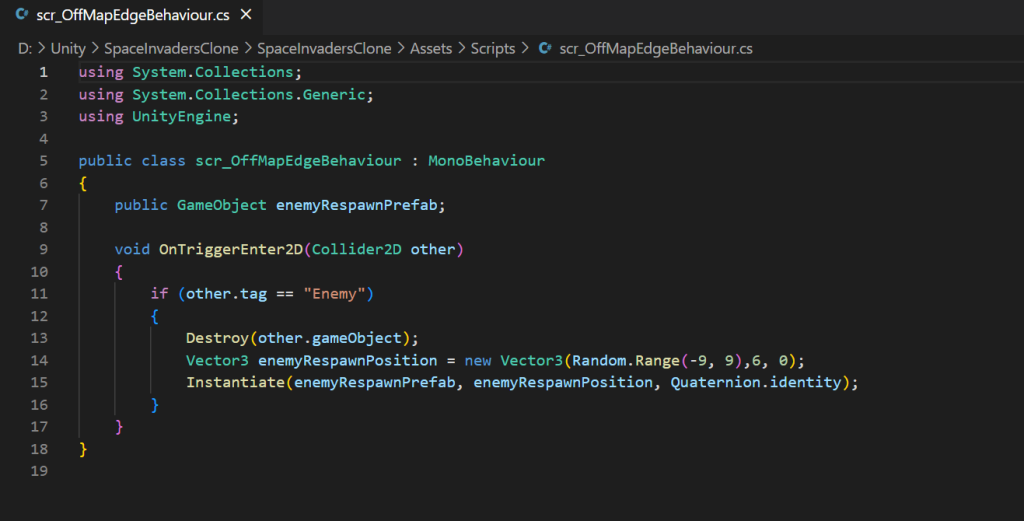
An extra thing that I did to polish the game is just to add 2 very similar scripts which involve the enemies and the bullets getting destroyed after being out of game view. The function in the off-map edge script for the enemy is exactly the same as the latest function that I added into my bullet behaviour script (as seen below), with the only difference being that the object that the script would be attached to won’t be destroyed. The off-map edge script for the bullet is similar to that but only that it references the “Bullet” tag instead of the enemy tag and that it doesn’t respawn the bullet after it gets destroyed by the object that the script is attached to (shown below).
Additional Notes
Overall, I’m proud of my results for this game. Everything worked smoothly at the end and there weren’t many major issues while I was making it. The only few things that I think were lacking in this game were a scoreboard and a potential player health system as I was trying to implement those but couldn’t figure out how to do so I decided to leave those and return to them another day. If I did manage to implement a scoreboard and a player health system to the game, it would have been better than what it turned out to be and it would definitely be more entertaining for the players that would play the game. Other than that, there isn’t a lot to say that has not turned out so well for this game and therefore I could be happy with my creation for now at least.