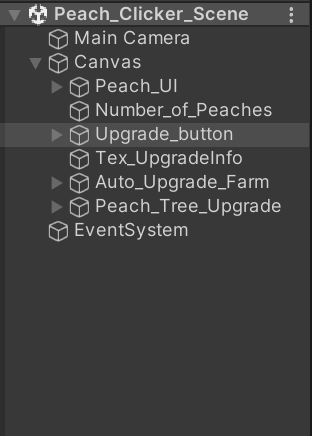
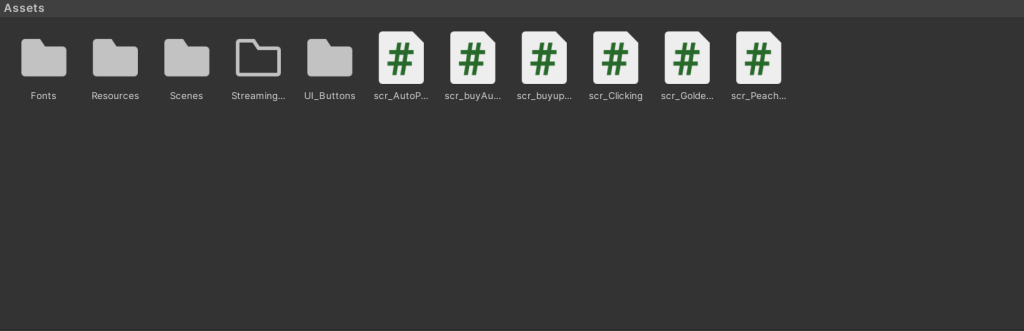
The first game that I have made during this module is a cookie clicker type of game that I called Peach Clicker. I decided to base my cookie clicker game from peaches due to several reasons, mainly because of the fact that there aren’t many games that are based on peaches and there is only one popular story based soley on a peach (the being James and the Giant Peach). Therefore, I just wanted to create a different version of cookie clicker that no one has done before.
Link to my cookie clicker game: Peach Clicker by DinoBoi111 (itch.io)
So, to start off with the project I named my Unity project appropriately so that it matches the name of the game, set the canvas to 2D and also made sure that I was doing my project on the right version of Unity (which in this case is 2022.7.1f). After it has finished loading in, I started off by choosing the resolution of my game screen, which I adjusted from a free aspect to a 9:16 ratio. I also positioned the windows to my own liking so that I could easily locate them should I need to do so. I started creating UI buttons and text on my canvas by right clicking on the hierarchy window, selecting UI and then the legacy button and legacy text respectively. After adding the buttons and text I needed, I positioned them how I wanted them to be.
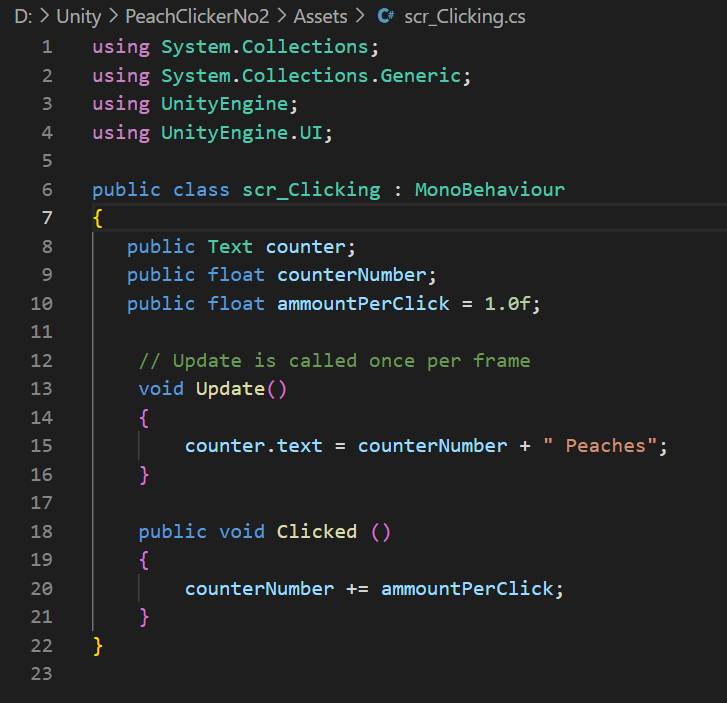
Then, I right clicked on the project window and created a new c# script which I have named scr_clicking since it involves the click function. So, I went on to visual studio to create code so that each time the button would get clicked, it would give the player a cookie (or in this case peaches). The “public float ammountPerClick” variable will basically have a value of how many peaches will add per click and the “public float counterNumber” will contain the value of cookies that I receive through each click. “Public Text counter” is variable that contains a reference to the text that will display how many peaches I have made. Basically, this code will allow my game start making peaches each time I click on my peach UI button and it will display it on the text I put on top of it.
I also made sure that I attached the script as a component in the inspector window of my Peach UI button as shown below to let Unity find the script whenever it needs to use it.


Then, I decided to make an upgrade to my game, so I created a new c# script and named it scr_buyupgrade_perclick. Like seen in the image below, I added a few new variables into the script. “Public Text upgradeInfo” will work in a similar way to the other public Text variable that I did in the earlier script, but instead of displaying the number of peaches that I would have, it will display the information about the upgrade (prices, etc). “Public string upgradeName” will be the name of the upgrade and the variable that is not shown below “public scr_Clicking click” is a reference to the script I did earlier, the reason why it’s added here is because some values in that script have to be changed in this script so that I would not have to alter anything that I did in that script earlier on. Overall, this script will basically display information about the upgrade (upgrade name, the number of peaches needed for that upgrade and the number of peaches I can get per click after the upgrade) each time we hover around the text at the bottom of the screen and will increase the number of peaches we receive per click. This script will also update the text on both number of peaches display text and the text that shows the info on the upgrade so that it lets the player know how many peaches they have and how much they have to pay for the next upgrade.

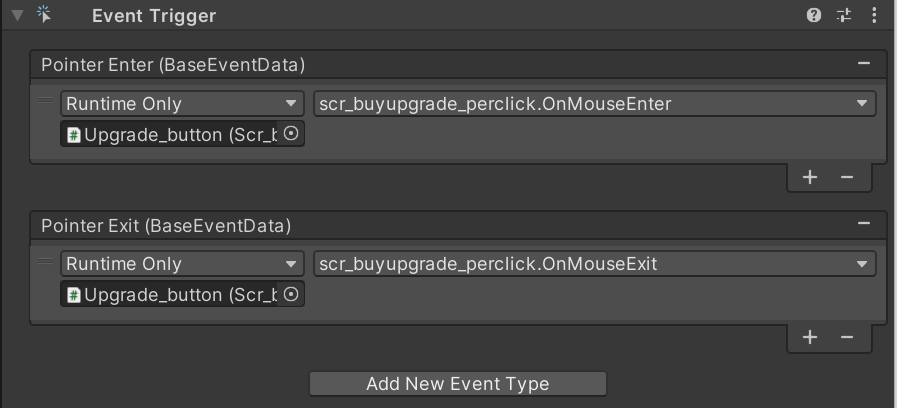
I saved this script and added it as a component in the upgrade button inspector window and added the OnMouseEnter and OnMouseExit functions in the event trigger component I created in the same inspector window (As shown in the two images below). I did this for the same reason as to why I did it in the other script: so that Unity knows what functions to use and where to look for them.

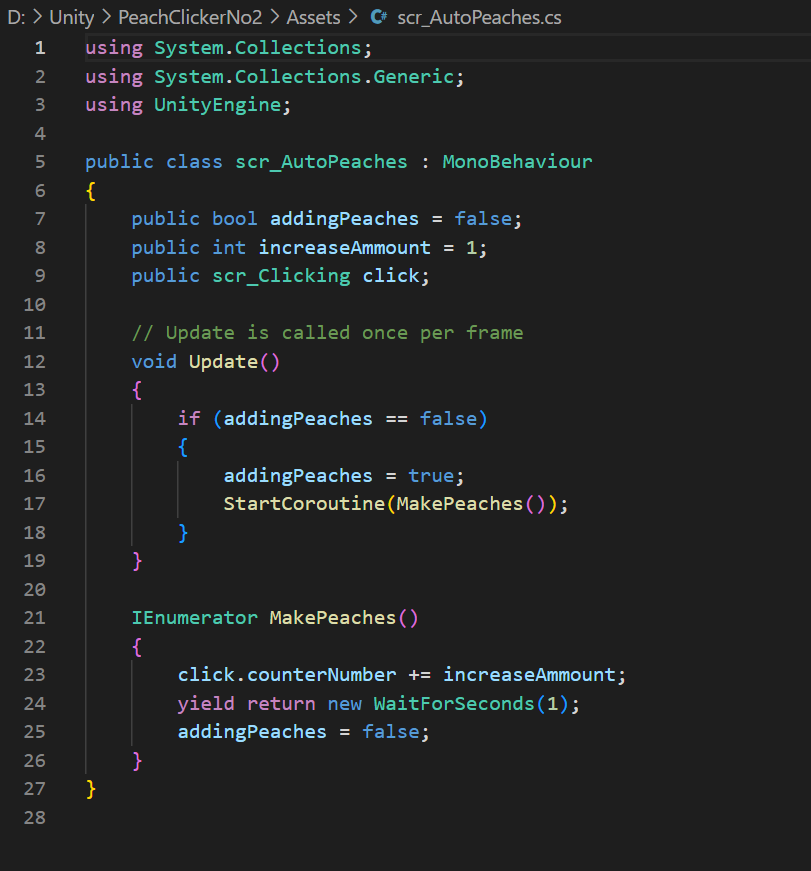
I went onto the assets tab again to create another c# script, this time being a script that will produce peaches automatically for the player. As seen below, I added a public boolean addingPeaches = False variable so that we would not be adding peaches onto our total (yet). The “increaseAmmount” integer would basically add one peach to the total per frame, but I don’t want that, so I added “IEnumerator MakePeaches()” coroutine so that it would only make one peach per second rather than one peach per frame. The void update function has an if statement which basically checks if the game is automatically adding peaches or not. If the game isn’t adding peaches, it will set addingPeaches as true and it will start the coroutine that I mentioned a few lines before. As an extra note, for this particular script I did not add a “using UnityEngine.UI” line into my code as I am not referencing any UI elements in this script.
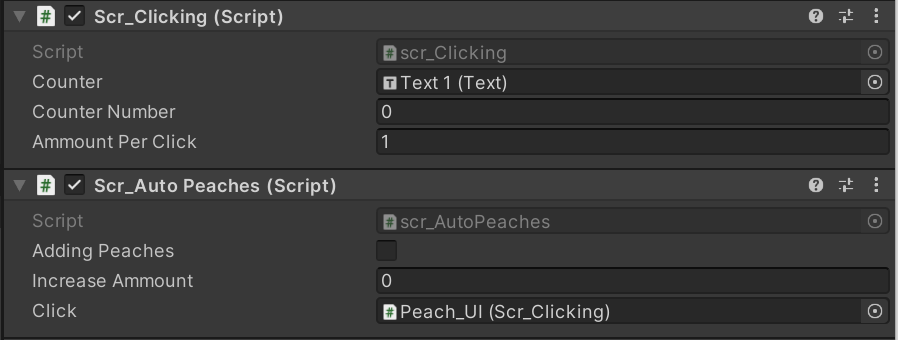
I then added the auto peaches script as a component in the inspector of my peach UI button and Text 1 (as seen below) for the same reason as I did for the other two scripts mentioned earlier on and made sure to adjust the values as I did for the other two scripts.
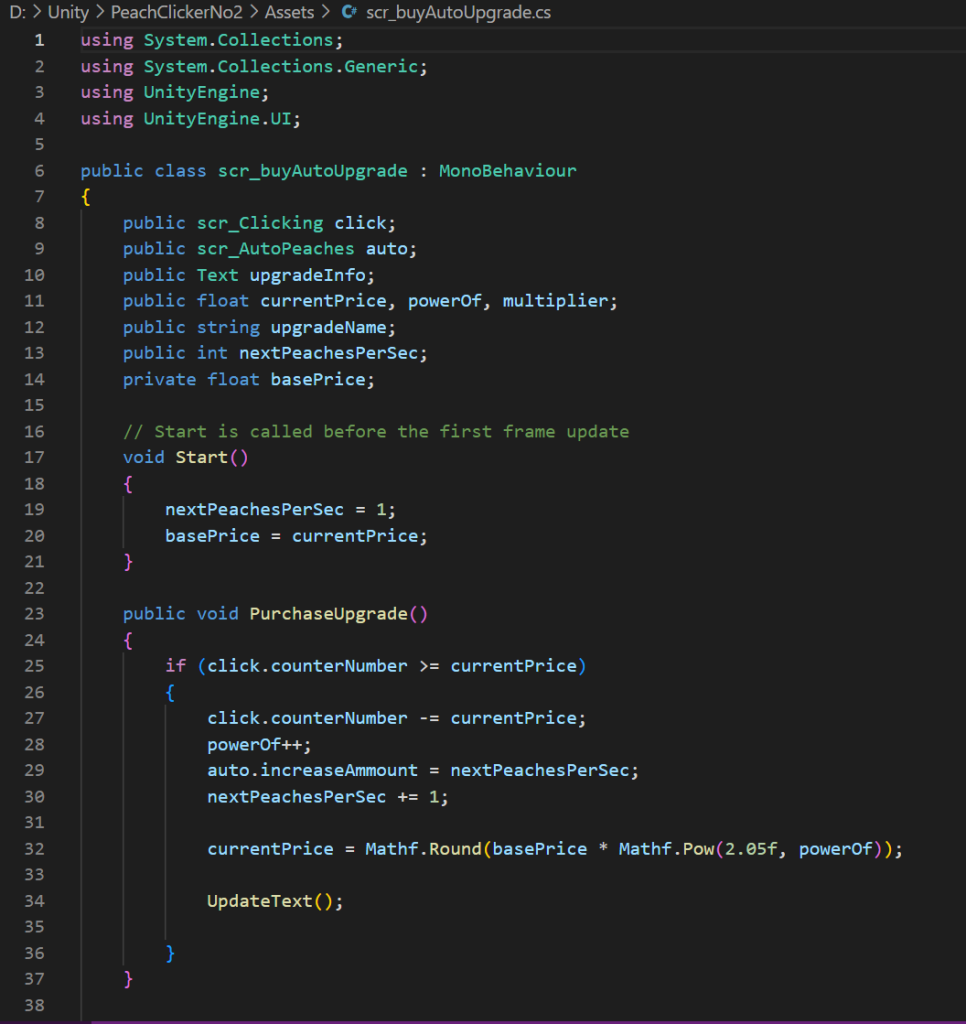
Then, all I needed to do is to create a c# script calle “scr_buyAutoUpgrade” so that automatic peaches could be purchasable as an upgrade. This script below is similar to the buy upgrade per click script but instead of only referencing scr_clicking it also references the scr_AutoPeaches script that I just finished making and instead of saying “peaches per click” it will say “peaches per second”. Also, there’s an added line on the void start function which will be the number of peaches the player will receive per second after the upgrade. (Shown in in image below)
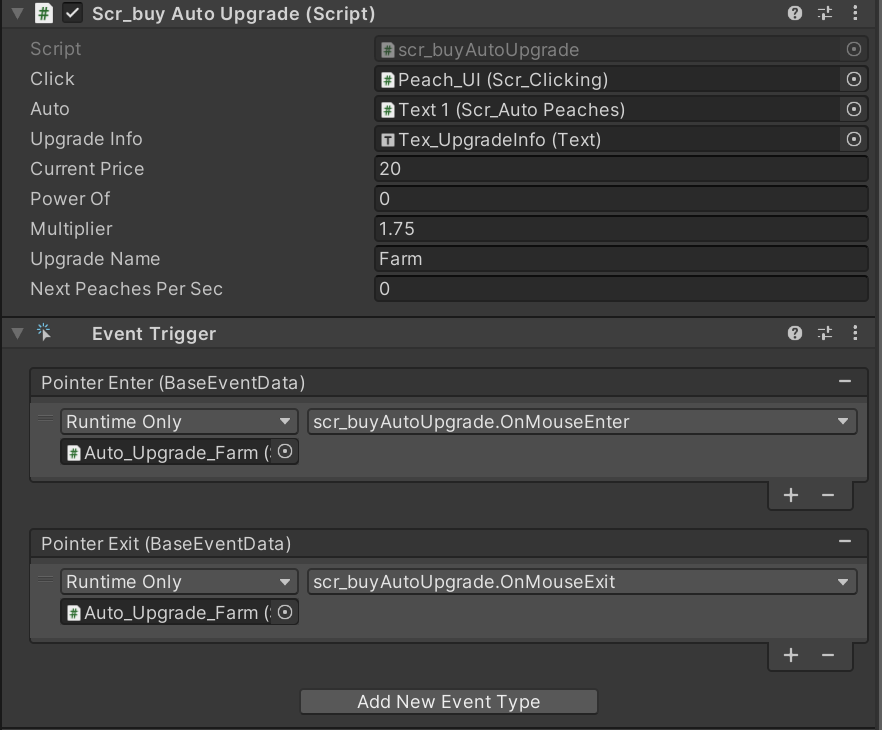
I also added the script as a component in the inspector window of the Farm upgrade UI button that I have. and also added event trigger component for the OnMouseEnter and OnMouseExit functions aswell as seen in the two images below.
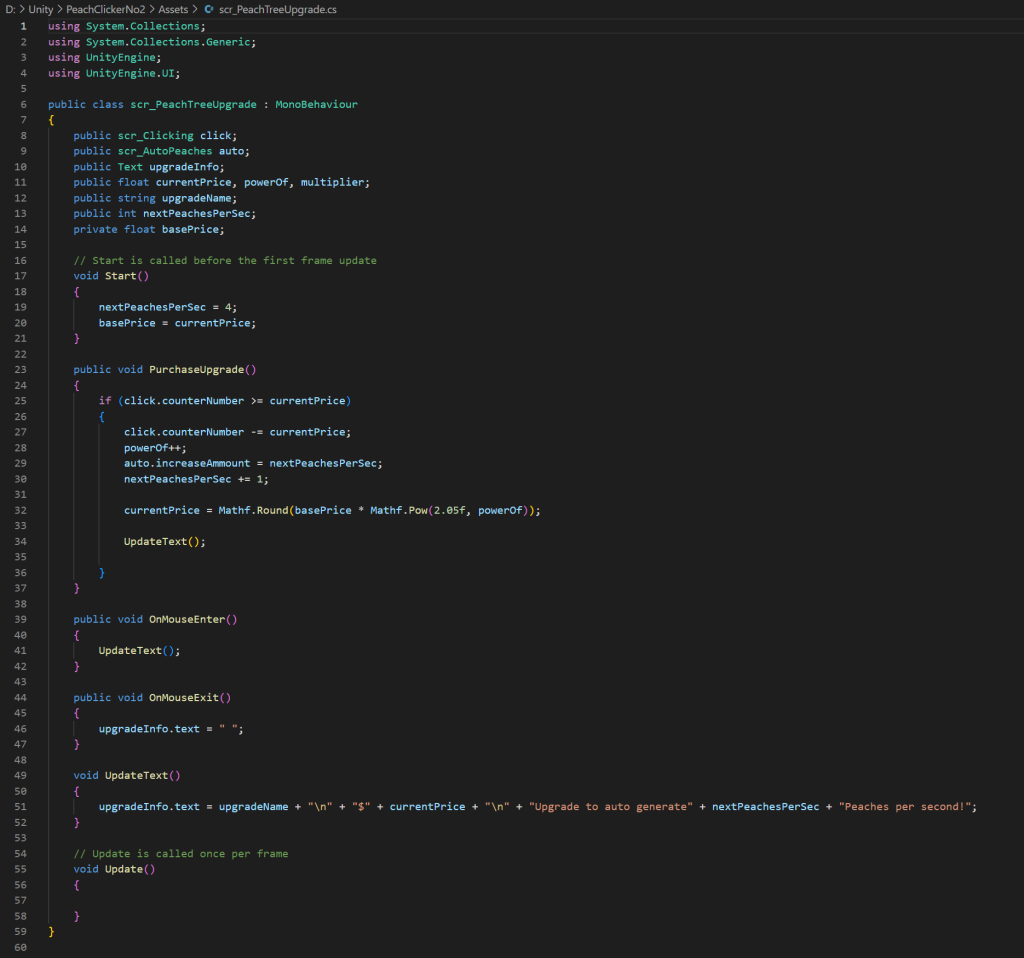
As an extra thing, I also created a similar c# script to “scr_buyAutoUpgrade” but I called it “scr_PeachTreeUpgrade”. The only differences between these two scripts that I’ve made is that the peach tree upgrade is on a different UI button, gives more peaches per second and has a bigger price than the farm auto upgrade (screenshots shown below). I also set it on another text so that both upgrades wouldn’t overlap each other as I had an issue with that when trying to make it work but eventually sorted it out.
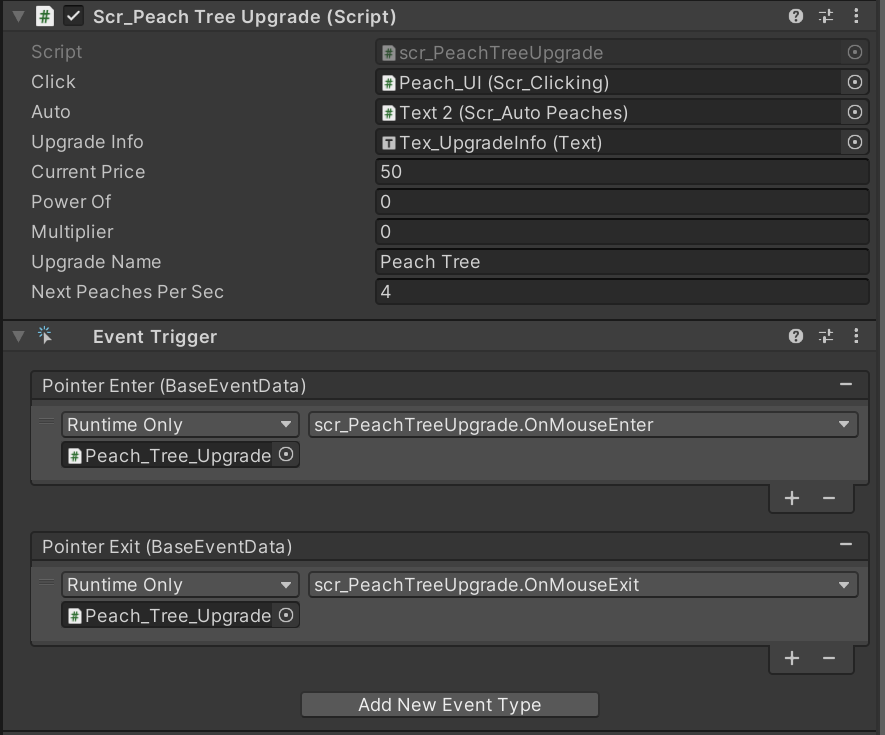

As a finishing touch I added a new folder on my assets tab to store all of my UI buttons and text that I created for this game so I could implement them into my game. The way in which I managed to place the designs to my game is through dragging them into to sprites tab on the inspector window of the respective UI button or text. (Final result is shown below)
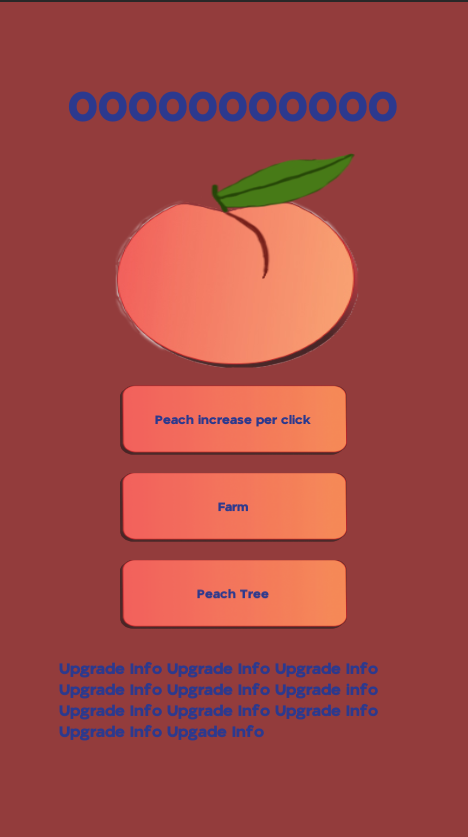
Overall, I am pretty impressed with my work on this game so far, I was thinking of adding a few more upgrades to the game but I ended up not adding them as I wanted to finish the game in time. The text clearly stands out from the background and the UI elements, which is what I was aiming to do with the text, though I might change the background again later on as it’s just filled with one colour for now. I will probably go back to improve the game in my own free time if I ever get the chance to do so, as I just realised that I did not clear the background of my peach properly and also as mentioned earlier, I will add more UI elements to the game later on in my free time.